

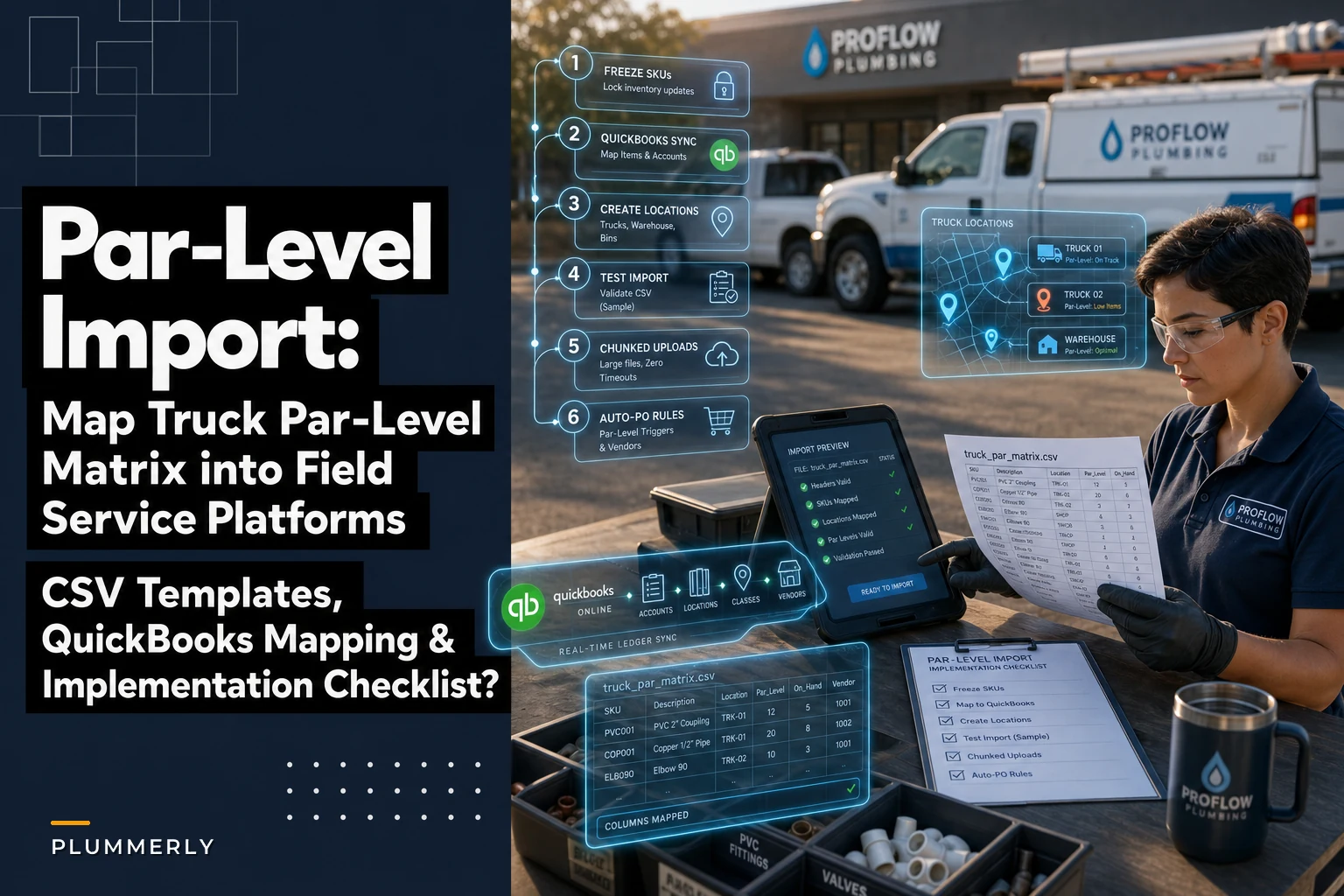

You already did the hard part. You built the truck parts par-level matrix, figured out what belongs on each van, and settled on min/max counts that reflect how your crews actually work. Now comes the part where most shops stall: getting that matrix out of Excel and into the field service platform your techs use every day.
This is where good stocking systems quietly die. The matrix stays in a Google Sheet, the software has "inventory" turned on but half-populated, and within three months your techs are back to eyeballing the van and texting the office for a part number. The gap isn't planning. It's the import.
So this article is narrow on purpose. It covers the mechanics of moving par-levels into FieldPulse, Commusoft, ServiceFusion, and FieldEdge — the CSV field names, the SKU convention that won't break your QuickBooks sync, the item-mapping traps, and roughly how long each platform takes to configure. If you want the theory behind stocking levels, that's covered elsewhere. This is the plumbing between the spreadsheet and the software.
Before you touch any CSV: get your SKU naming right
Every import problem I've watched blow up traces back to one thing — inconsistent SKUs. You import fine on day one, then two weeks later someone adds a part manually in the field with a slightly different code, and now you've got PVC-1/2-ELB and PVC-050-ELBOW referring to the same fitting. QuickBooks sees two items. Your inventory reports become garbage.
Lock the naming convention before the first import. The format that survives contact with real crews looks like this:
``
[CATEGORY]-[SIZE]-[TYPE]-[MATERIAL]
``
Examples:
-
FIT-050-ELBOW-CPVC
-
FIT-075-TEE-COPPER
-
VLV-050-BALL-BRASS
-
SUP-NA-TEFLON-TAPE
-
WH-NA-ANODE-ROD
A few rules that save pain later:
-
No slashes, no spaces. Slashes break CSV parsing and some QuickBooks sync layers. Use
050not1/2". -
Pad your sizes.
050,075,100sort correctly.1/2,3/4,1do not. -
Use
NAfor non-sized items so every SKU has the same number of segments. Consistent segment count makes bulk-editing much easier later. -
Cap it around 20 characters. FieldEdge and some QuickBooks Desktop configs get cranky with long item names.
The shops that skip this step spend more time cleaning up duplicate items six months in than they would have spent building the convention upfront. It's boring work. Do it anyway.
The universal pricebook template (paste this and adapt)
Before mapping to any specific platform, build one master CSV. You'll re-map columns per vendor, but keeping a single source of truth means you edit par-levels in one place and re-export.
Stop missing service calls and double bookings.
Plummerly helps you schedule, assign, and manage every plumbing job efficiently.
- Centralized job scheduling
- Technician dispatch & tracking
- Customer notifications
No credit card required
Here's a pasteable base template:
``csv
SKU,ItemName,Category,Description,UnitCost,SellPrice,PreferredVendor,VendorPartNumber,ParMin,ParMax,ReorderQty,TruckLocation,Taxable,QBIncomeAccount,QBExpenseAccount,QBAssetAccount
FIT-050-ELBOW-CPVC,1/2" CPVC 90 Elbow,Fittings,Half inch CPVC 90 degree elbow,0.42,2.50,Ferguson,U8000-005,10,20,10,Van-A Bin3,Y,Sales:Parts,COGS:Parts,Inventory Asset
FIT-075-TEE-COPPER,3/4" Copper Tee,Fittings,Three quarter inch copper tee sweat,1.85,6.00,SupplyHouse,CT-075,6,12,6,Van-A Bin3,Y,Sales:Parts,COGS:Parts,Inventory Asset
VLV-050-BALL-BRASS,1/2" Brass Ball Valve,Valves,Half inch full port brass ball valve,4.20,14.00,Ferguson,BV-050-FP,4,8,4,Van-A Bin1,Y,Sales:Parts,COGS:Parts,Inventory Asset
SUP-NA-TEFLON-TAPE,PTFE Thread Seal Tape,Supplies,Standard 1/2 inch PTFE tape roll,0.35,2.00,SupplyHouse,PTFE-12,8,16,8,Van-A Bin5,Y,Sales:Parts,COGS:Parts,Inventory Asset
WH-NA-ANODE-ROD,Aluminum Anode Rod,Water Heater,Universal aluminum anode rod,11.50,39.00,Ferguson,AR-AL-STD,2,4,2,Van-B Bin2,Y,Sales:Parts,COGS:Parts,Inventory Asset
``
Notice the three QuickBooks account columns at the end. Those aren't optional if you want your sync to post to the right places. More on that below — it's where most imports quietly break.
Vendor-by-vendor feature mapping
Each platform handles inventory and par-levels differently, and the differences matter more than the sales demos let on. Here's how the four stack up on the things that actually affect a par-level import.
| Feature | FieldPulse | Commusoft | ServiceFusion | FieldEdge |
|---|---|---|---|---|
| Offline mobile inventory caching | Solid — counts sync when signal returns | Partial — needs connection for most inventory actions | Limited offline; better on newer app builds | Weak offline; assumes connectivity |
| "Van as warehouse" (per-truck stock locations) | Yes, native multi-location | Yes, robust van/warehouse model | Yes, but setup is fiddly | Yes, tied tightly to QuickBooks items |
| Auto-PO / reorder rules from par-min | Yes, min/max triggers | Yes, strong — one of its best features | Basic reorder alerts | Yes, but PO logic leans on QB |
| CSV import field naming | Flexible mapper on import | Structured, stricter field names | Template-based, less forgiving | Column mapping tied to QB item fields |
| Native QuickBooks sync | Online + Desktop | Online (Desktop via workaround) | Online + Desktop | Deep Desktop integration (its heritage) |
A few honest observations from working through these imports:
-
FieldPulse has the friendliest CSV mapper — it lets you match your columns to its fields at import time, so your master template survives mostly intact.
-
Commusoft is the strongest on warehouse and auto-PO logic but is pickier about CSV structure. Expect to rename columns to its exact expected headers.
-
ServiceFusion works, but its inventory module feels bolted-on compared to its dispatch side. Van-as-warehouse setup takes patience.
-
FieldEdge is essentially a front-end that lives and dies by QuickBooks Desktop. If your accounting is already deep in QB Desktop, this goes smoothly. If not, it'll fight you.
One key tradeoff per platform
-
FieldPulse — Great import flexibility and solid offline counts, but auto-PO logic is simpler than Commusoft's. Fine for 1–5 trucks; you may outgrow the reorder rules as you scale.
-
Commusoft — Best-in-class inventory and PO automation, but the steepest setup and the most rigid CSV requirements. You pay in implementation time.
-
ServiceFusion — Strong overall for scheduling, but inventory is the weakest of its modules. Par-levels work, they just aren't the star feature.
-
FieldEdge — Deep QuickBooks Desktop sync is a genuine advantage only if you're already committed to QB Desktop. Otherwise it's probably the wrong fit.
FieldEdge — Deep QuickBooks Desktop sync is a genuine advantage only if you're already committed to QB Desktop. Otherwise it's probably the wrong fit.
Per-vendor field mapping (what your columns become)
Here's how the master template columns translate per platform. This is the part that saves the most trial-and-error.
FieldPulse (import mapper, flexible):
-
SKU→ Item SKU -
ItemName→ Item Name -
ParMin/ParMax→ Min Stock / Max Stock -
TruckLocation→ Location -
PreferredVendor→ Vendor
FieldPulse lets you leave extra columns unmapped without erroring out, which is why keeping the full master template works fine here.
Commusoft (stricter headers):
-
SKU→part_number -
ItemName→description -
UnitCost→cost_price -
SellPrice→sale_price -
ParMin→minimumstocklevel -
ReorderQty→reorder_quantity
Commusoft expects lowercase, underscore-separated headers. Rename before uploading or the import fails silently on those rows.
ServiceFusion (template-driven):
Download their inventory import template first, then paste your data into their column order. Don't try to force your headers — match theirs. TruckLocation maps to their "Warehouse" field, which you must create as a location before import or it won't stick.
FieldEdge (QuickBooks-anchored):
Items are created and synced through QuickBooks first, then par-levels are set inside FieldEdge. Your QBIncomeAccount, QBExpenseAccount, and QBAssetAccount columns feed the QB item setup directly. Get those right or the item won't sync as an inventory part.
The QuickBooks item-mapping checklist (where imports actually break)
Slow down here. More failed inventory rollouts come from QuickBooks sync mismatches than from anything in the field software itself. Work through this before you flip the sync on:
-
Every inventory SKU is set up as an "Inventory Part" in QuickBooks — not "Non-inventory Part" and not "Service." This is the #1 silent failure. Non-inventory items won't track quantity on hand.
-
All three accounts are assigned Income account, COGS/Expense account, and Inventory Asset account. Missing the Asset account means QB won't track quantity.
-
SKU matches exactly between systems — same characters, same case, no trailing spaces. A single trailing space creates a duplicate item on sync.
-
No duplicate item names in QuickBooks before import. QB rejects the whole sync batch on a name collision, not just the offending row.
-
Sub-items nesting is under 5 levels (QB Desktop limit). If you category-nest heavily, you'll hit this.
-
Tax status matches between the field platform and QB. Mismatches create reconciliation headaches at month-end.
-
Decide the sync direction — which system is the source of truth for cost and quantity? Pick one. Two-way sync with no defined rule creates a situation where each system overwrites the other on every pull.
Common sync pitfalls, specifically
-
The "non-inventory" trap. Techs or office staff quick-add a part in the field app, it syncs to QB as non-inventory by default, and now that SKU never decrements on hand. You think you have 8 anode rods; you have 2.
-
Cost updates overwriting. Your supplier raises the elbow price, you update it in QB, but the field platform pushes its old cost back on next sync. Set QB as the cost authority if you manage pricing there.
-
Batch rejection on one bad row. Especially with FieldEdge and QB Desktop — one malformed item can bounce the entire batch. Import in chunks of 50–100 the first time so you can isolate the problem row without guessing.
Batch rejection on one bad row. Especially with FieldEdge and QB Desktop — one malformed item can bounce the entire batch. Import in chunks of 50–100 the first time so you can isolate the problem row without guessing.
Rough pricing and implementation-time estimates
Ballpark figures to set expectations. Pricing shifts based on truck count and tier, so treat these as ranges.
| Platform | Rough monthly cost (small fleet) | Realistic time to import + configure par-levels |
|---|---|---|
| FieldPulse | ~$50–$100+/user | About half a day to a full day for a clean CSV |
| Commusoft | ~$50–$130+/user | Two to four days — the warehouse and PO setup is the time sink |
| ServiceFusion | ~$150+/mo base tiers | A full day or two, mostly creating warehouse locations |
| FieldEdge | Custom/quote-based | Two to three days if QB Desktop is already clean; longer if not |
The pattern worth noticing: the platforms with the most powerful inventory automation (Commusoft, FieldEdge) also demand the most upfront setup. The lighter-setup options (FieldPulse) trade some reorder sophistication for speed. For a 1–4 truck shop just getting par-levels off a spreadsheet, faster-to-live usually wins.
A realistic import workflow, start to finish
Here's the order that avoids the most rework, regardless of platform:
-
Freeze your SKU convention and apply it to the entire master template. No exceptions, no "we'll fix it later."
-
Set up your QuickBooks items first as proper Inventory Parts with all three accounts assigned. Do this before the field-software import if the platform syncs to QB.
-
Create your truck/warehouse locations in the field platform (
Van-A,Van-B,Warehouse). Locations must exist before par-levels can attach to them. -
Do a test import of 10–15 SKUs, not the full list. Verify they land as inventory parts, quantities track, and the sync round-trips cleanly.
-
Import the full matrix in chunks of 50–100 rows so any bad row is easy to isolate.
-
Set the auto-PO and reorder rules from your
ParMinandReorderQtyfields. -
Do one physical count per van and reconcile against the imported on-hand numbers. Your matrix is theory until the first real count confirms it.
A quick visual summary can help align office and techs on the steps.
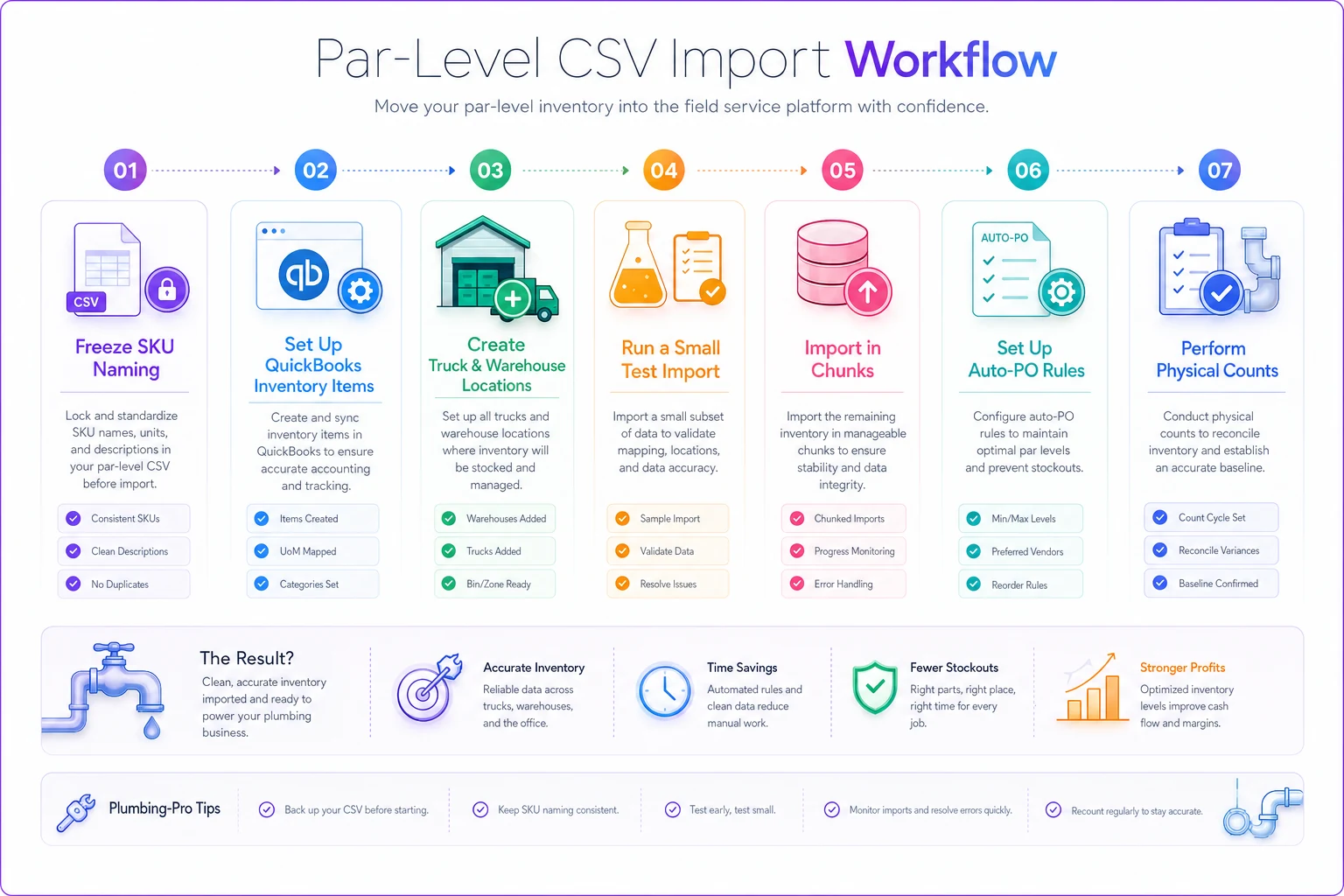
Step 4 is the one people skip and regret. A 15-SKU test costs fifteen minutes. A failed 400-SKU import that syncs garbage into QuickBooks costs a weekend of cleanup.
A short real scenario
A three-truck shop doing mostly residential service repair had a clean par-level matrix in Google Sheets — genuinely good work — but none of it lived in their dispatch software. Techs stocked vans by feel, and return trips for missing parts were running 3–4 a week across the crew.
They moved to FieldPulse and imported the matrix using a version of the template above. Setup took about a day, plus another half-day fixing QuickBooks items that had been created as non-inventory parts years earlier. The anode rods and a batch of valves weren't tracking quantity at all — classic issue that nobody notices until they go looking.
After the first full month with par-levels live and reorder alerts firing, return trips dropped to roughly one a week. Nothing dramatic in the numbers, but a handful of recovered trips a week is a couple of extra billable jobs, and the office stopped fielding "what's the part number for…" texts throughout the day. The owner's take was basically that the matrix finally did something instead of sitting in a tab nobody opened.
The point isn't the software brand. A par-level matrix only pays off once it's the thing driving van stock and reorder logic — not a document you built and forgot.
When this makes sense — and when it doesn't
Do this now if:
-
You already have a working par-level matrix and it's living in a spreadsheet.
-
Return trips for missing parts are a recurring, measurable annoyance.
-
Your QuickBooks item list is reasonably clean, or you're willing to clean it as part of the project.
Hold off if:
-
You haven't actually validated your par-levels with real counts yet. Import bad numbers and you've just automated the wrong stock levels.
-
Your QuickBooks is a mess of duplicate and mistyped items. Fix that first — importing on top of it multiplies the chaos.
-
You're mid-switch between platforms. Don't import into a system you're about to leave.
Who should skip inventory sync entirely: a solo owner-operator running one van who already knows their stock cold. The overhead of setup and sync maintenance may not earn its keep at that size — a laminated par-count card on the van door might genuinely be enough until you add a second truck.
Track whether it worked (ROI + KPI)
Set up a simple tracker — a spreadsheet is fine — and log these before you import and again at 30 and 60 days:
-
First-time-fix rate — % of jobs completed without a return trip for parts. This is the headline number.
-
Return trips per week — raw count across all trucks.
-
Stockouts per week — times a van hit zero on a par item.
-
Inventory carrying value per van — are you overstocking after import? Par-max discipline should keep this flat or lower.
-
Emergency supplier runs — the expensive counter-pickup trips at full retail.
Build the tracker with a "before" column, a 30-day column, and a 60-day column, plus a rough dollar estimate per avoided return trip (labor plus drive time plus the job you didn't get to). That last figure is what turns "we're doing fewer return trips" into a number your books can actually see.
The software isn't the hard part here. The convention, the QuickBooks item setup, and the discipline to count and reconcile are. Get those three right and any of these four platforms will hold your par-levels just fine. Get them wrong and the fanciest inventory automation on the market will just help you be wrong faster.
Ready to optimize your plumbing operations?
Join 500+ plumbing businesses using Plummerly to save time, reduce scheduling errors, and improve customer satisfaction.